From 1 October 2026, Microsoft starts switching off Exchange Web Services (EWS) in Exchange Online, tenant by tenant. Most users will not notice, because Outlook does not need it. Mac users on Apple Mail and some backup tools will. The EWS retirement in Exchange Online also gives no warning when it reaches your tenant. In this guide, I’ll show what breaks and how to check your tenant in about 15 minutes.
Quick Answer: From 1 October 2026, Exchange Online changes the EWSEnabled setting from not configured to False, so any app still using EWS gets blocked. Outlook for Windows, new Outlook for Mac, Outlook on the web and Outlook mobile are not affected. Apps you still need can stay on an allow list until 1 April 2027, when EWS is switched off for everyone.
What EWS Retirement in Exchange Online Actually Changes
EWS is the old SOAP interface apps use to read and write mailbox data. Microsoft has asked developers to move to Microsoft Graph for years. Now the switch-off has a date.
Here is what happens, based on Microsoft’s message center posts MC1227454 and MC1447678:
- Every tenant has an EWSEnabled setting. In most tenants it was never touched, so it is blank (Null).
- From 1 October 2026, a blank setting is changed to False when the rollout reaches your tenant. False means all EWS access is blocked.
- The rollout goes in waves over weeks. If everything still works on 2 October, it only means your turn has not come yet.
- If an admin set EWSEnabled to True and added an app allow list before the end of September, the tenant is left out of this automatic change. Only the apps on the list can use EWS.
- Watch this one. True with an empty allow list used to mean “everything allowed”. From October, it blocks all EWS traffic except cross-tenant organization relationships. So an admin who set True “to be safe” and stopped there has blocked everything.
- From 1 April 2027, EWS is disabled for all tenants and the setting stops mattering. Full removal is expected around May 2027.
This is only Exchange Online. EWS on your own Exchange Server (2016/2019/SE on-premises) keeps working.
What Stops Working (and What Does Not)
The good news first. These clients do not use EWS and keep working:
- Outlook for Windows, classic and new
- New Outlook for Mac
- Outlook on the web
- Outlook mobile for iPhone and Android
- The built-in Mail app on iPhone and iPad
These are the ones at risk:
- Apple Mail, Calendar and Contacts on the Mac. For Exchange accounts, the Mac apps still rely on EWS. Apple has said Graph support is coming in a future macOS 27 update, but it is not out yet. Microsoft’s own advice to admins is to move these users to Outlook for Mac until Apple ships the update.
- Legacy Outlook for Mac. It stops working with Exchange Online on 1 October 2026 for the same reason. Users need to switch to new Outlook for Mac.
- Backup tools. Some Microsoft 365 backup products still need EWS during the transition. Veeam says Veeam Backup for Microsoft 365 needs EWS for Exchange Online backups until Graph supports what incremental backups need, and asks admins to add its app IDs to the allow list. AvePoint says the same for archive, group and public folder mailbox backups.
- Migration tools, calendar add-ons, CRM connectors and menu bar calendar apps that were built on EWS and not updated.
- Your own scripts and in-house apps that read mailboxes through EWS. These are the easiest to forget. Often nobody remembers who wrote them.
If you are not sure which Outlook you have, check this guide on how to know what version of Outlook you have. And for the Mac side, see Outlook for Mac vs Apple Mail.
How to Check Your Tenant in 15 Minutes
You need a Global Administrator or a reports reader role for the report, and Exchange admin rights for the PowerShell part.
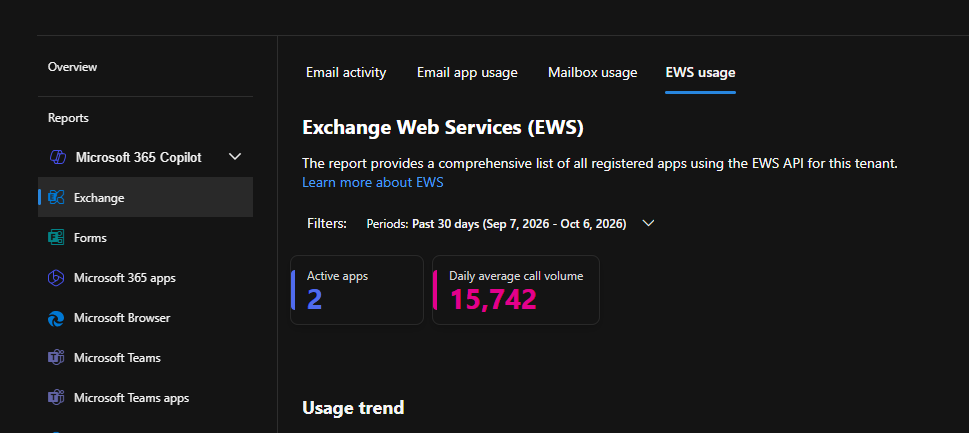
1) Open the EWS Usage Report
Microsoft documents this report on its EWS usage report page.
- Go to the Microsoft 365 admin center.
- Select Reports. If you do not see it, select Show all first.
- Select Usage.
- Under Reports, select Exchange.
- Open the EWS usage tab.
Set the filter to 90 days. The top shows Active apps (how many apps called EWS) and Daily average call volume. The table below lists each Application ID with the SOAP action, call volume and last activity date. Use Export to get it as a CSV file.
Keep in mind the data is collected weekly and can be up to 10 days behind. So an app that only runs at month end may not show in a 7-day view.
2) Match Each Application ID to a Real App
The report shows GUIDs, not names. To find out what each one is:
- Check Microsoft’s list of first-party app IDs. Microsoft apps are being updated to remove EWS on their own.
- For everything else, go to Microsoft Entra admin center > Enterprise applications and search for the Application ID.
Write down the app name and who owns it. That list is your whole decision.
3) Check the Current Setting with PowerShell
Connect with the ExchangeOnlineManagement module:
Connect-ExchangeOnline
Get-OrganizationConfig | Format-List EwsEnabled
Blank means not configured. The rollout will switch it to False, if it has not already. False means EWS is blocked. True means someone set it on purpose, so check the allow list next.
To see the allow list, you have to ask for it with an extra switch. It is not returned otherwise:
Get-OrganizationConfig -RetrieveEwsOperationAccessPolicy | Format-List EwsAllowedAppIDsDecide App by App: Allow, Replace or Let It Go
Once you have the list, every app falls into one of three buckets:
| App type | What to do |
|---|---|
| Backup or migration tool that still needs EWS, with a vendor KB that says so | Add its app ID to the allow list, and ask the vendor for their Graph date |
| Apple Mail on Mac, legacy Outlook for Mac, old sync apps | Move users to new Outlook for Mac or another supported client |
| Apps nobody uses, or scripts with no owner | Let EWS stay off and remove the app registration |
An allow list entry only buys time until 1 April 2027. After that nothing on EWS works, so every “allow” needs a replacement plan.
The allow list is set with one command (Set-OrganizationConfig). The app IDs go in one string, separated by commas:
Set-OrganizationConfig -EwsEnabled $true -EwsAllowedAppIDs "app-id-1,app-id-2"Changes can take up to 24 hours to apply, so do not test five minutes later and assume it failed.
If Something Already Stopped Working
Typical signs after the rollout reaches your tenant:
- Apple Mail on a Mac keeps asking for the password, fails to connect, or shows errors from Exchange Online.
- Backup jobs for mailboxes start failing, often with a permission or access denied error.
- A calendar add-on or CRM sync goes blank without any change on your side.
First run the two PowerShell commands above to see the current setting. If EwsEnabled shows False and a business app must keep working, set it to True with that app on the allow list, then give it time to apply. This is the route Microsoft documents. Some admins say setting it back to blank also restores access until April. Sources do not agree on that, so check the latest message center post before you rely on it.
For Mac users on Apple Mail, there is no setting that fixes it cleanly. Moving them to Outlook for Mac is the answer until Apple ships the Graph update.
FAQ
Does EWS retirement affect Outlook?
No. Outlook for Windows (classic and new), new Outlook for Mac, Outlook on the web and Outlook mobile do not use EWS for mail. Legacy Outlook for Mac is the exception, and it stops working with Exchange Online from 1 October 2026.
Does this affect Exchange Server on-premises?
No. The change is for Exchange Online only. EWS on your own Exchange servers keeps working. In a hybrid setup, only the cloud mailboxes are affected.
Can I keep EWS after April 2027?
No. From 1 April 2027, EWS in Exchange Online is disabled for everyone, allow list or not. Any app still using it by then has to move to Microsoft Graph.
For the background on how Outlook connects, see what protocol Outlook uses. The one thing to do today is open the EWS usage report. Its data is up to 10 days behind, so look now, not after the first help desk call.

1 thought on “EWS Is Being Switched Off in Exchange Online: What Breaks and How to Check Your Tenant”