If you want to know how to create a PST file in Outlook, the answer depends on which Outlook you run. Classic Outlook for Windows makes a blank PST in a few clicks. New Outlook for Windows cannot make a blank one, but it can export your mail into a new PST and, since March 2026, import one back (every item type since June 2026). In this guide, I’ll show both, plus the password and size limits to check first.
Quick Answer: In classic Outlook for Windows, go to Home > New Items > More Items > Outlook Data File, type a file name and click OK. New Outlook for Windows cannot create a blank PST, so use the Export option in Settings to write your mail into a new .pst file. Outlook for Mac cannot create PST files.
Which Outlook Do You Have
The menus are different, so check this first. Classic Outlook has a File tab at the top left. New Outlook has a Settings gear at the top right and no File tab. If you are not sure, here is how to tell new Outlook from classic Outlook.
| Outlook | Create a PST | Open or import a PST |
|---|---|---|
| Classic Outlook for Windows | New Items > More Items > Outlook Data File | File > Open & Export |
| New Outlook for Windows | No blank PST. Export in Settings makes one from your mail | Settings > Data files > Outlook Data Files or Import |
| Outlook for Mac | No. It exports .olm files | Legacy Outlook for Mac only: Tools > Import |
A PST (Personal Storage Table) is the file classic Outlook uses for POP accounts and for archives and exports. Microsoft 365, Exchange and Outlook.com accounts keep an offline cache in an .ost file instead, and you cannot move that file to another computer. So if you only use a work mailbox, you do not need a PST until you want an archive or a copy of your mail.
How to Create a PST File in Classic Outlook
This works in Outlook for Microsoft 365 and in Outlook 2016 to 2024. Microsoft’s page for it is create an Outlook Data File (.pst).
- In the Mail view, open New Items on the Home tab.
- Select More Items, then Outlook Data File.
- Type a file name. The default folder is Documents\Outlook Files, and you can browse to another local folder.
- Tick Add Optional Password if you want one.
- Click OK. If you ticked the password box, type the password in Password and Verify Password, then click OK again.
The same dialog opens from File > Account Settings > Account Settings. Open the Data Files tab and click Add. The dialog is called “Create or Open Outlook Data File”, so that button also adds a PST that already exists.
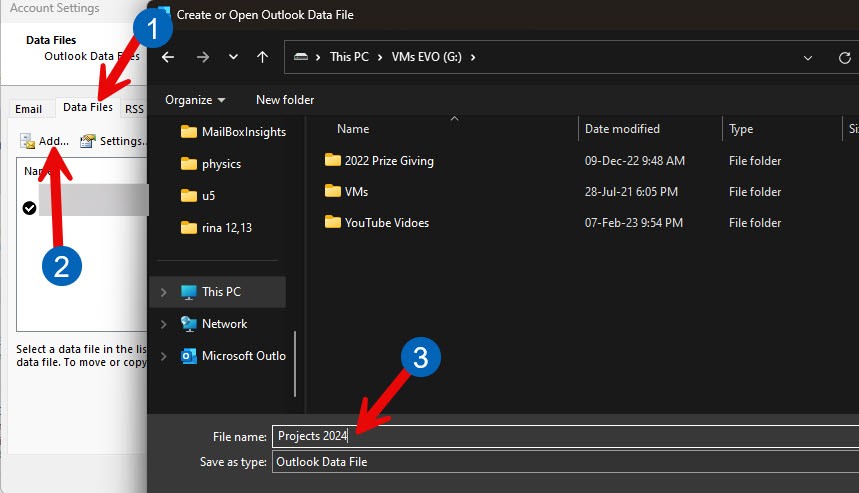
The new file shows in the folder pane as its own entry, below your mailbox folders.
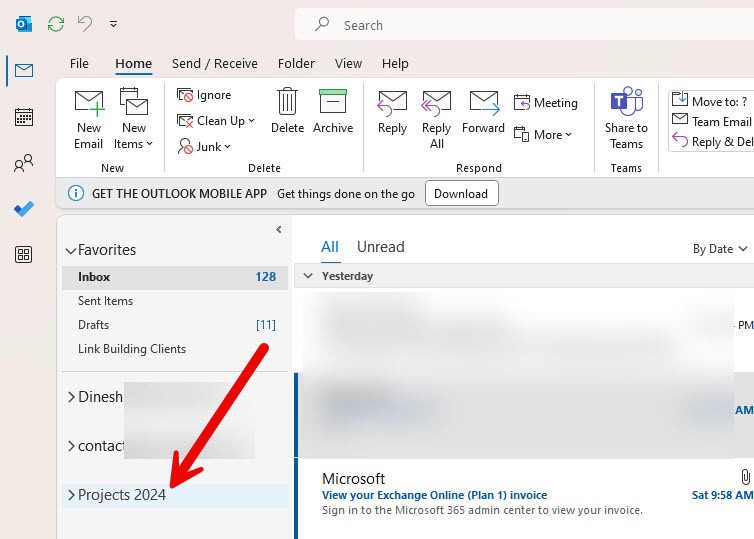
Drag messages onto its folders to fill it. A drag is a move, so the message leaves your mailbox. If you want a copy and the mail to stay where it is, export instead.
How Do I Save an Outlook Email as a PST File
Export it. An export copies your mail into a new PST and removes nothing from Outlook. In classic Outlook, follow the below steps:
- Go to File > Open & Export > Import/Export.
- Choose Export to a file, then Outlook Data File (.pst).
- Select the account and keep Include subfolders ticked.
- Browse to a local folder, type a file name, click OK, then Finish.
Microsoft’s export page lists the limits. You can export one account at a time. With Cached Exchange Mode on, only mail cached on the PC is exported, so move the sync slider to All (or turn Cached Exchange Mode off) first. Folder properties, rules and blocked sender lists are not exported.
In new Outlook, open Settings, select Export, then Get started and pick the mailbox or folders. Microsoft does not say where the wizard saves the file, so search the PC for *.pst afterwards if you do not spot it. New Outlook can also schedule an export, which Microsoft added on 12 September 2025.
Does New Outlook Allow PST Files
Yes. New Outlook for Windows can export to a PST, and it can open or import one. It cannot create a blank PST, and it does not make one for your account.
Microsoft added mail import on 20 March 2026 and extended it to calendar events, contacts and tasks on 12 June 2026, so a current build imports every item type. Microsoft’s feature comparison page still lists PST support as partially available, because some classic Outlook capabilities are missing.
Some older Microsoft pages have not caught up. The export page (dated 6 May 2026) still says importing a PST is not supported in new Outlook and that calendar and contact items in a PST are not available, and the overview page (also dated 6 May 2026) says bulk import is only planned. The import page (dated 12 August 2026) and the release notes for new Outlook are newer or dated entries, and they say import works.
Opening a PST in new Outlook needs all of these:
- Classic Outlook installed on the same PC, with the same bitness (32-bit or 64-bit).
- A Microsoft 365 subscription on the account.
- Not the ARM version of new Outlook.
- New Outlook not running in Safe or Recovery mode.
Microsoft lists these under opening a PST, and its import steps do not repeat them. It says it plans to drop the classic Outlook requirement but gives no date.
How to Import a PST File in New Outlook
- Go to Settings > Data files > Import. (Microsoft’s import page, dated 12 August 2026, uses this label. The release notes and older pages call the section Files.)
- Under Outlook Data File (.pst), select Get started, then Select file.
- Pick the .pst and select Open.
- Choose the folder to import from, leave Include subfolders ticked and select Next.
- Choose how to handle duplicate items and select Next.
- Pick the destination mailbox and folder (or a New folder) and select Import.
An import copies the items into your mailbox and does not add the PST to your Outlook Data Files list. To only read the file, open it instead with Settings > Data files > Outlook Data Files > Add file. Microsoft’s import page covers both.
How Do I Add a PST File in Classic Outlook
To read an existing PST, use File > Open & Export > Open Outlook Data File. To copy its items into a mailbox, use File > Open & Export > Import/Export > Import from another program or file > Outlook Data File (.pst), then browse to the file, choose the duplicate option, pick the target mailbox and select Finish.
Set a Password on the PST
You can set the password when you create the file, or later. Once it is set, Outlook asks for it every time the PST is opened, including at start.
- Go to File > Account Settings > Account Settings and open the Data Files tab.
- Select the PST and click Settings.
- Click Change Password. Leave Old password blank if there is none.
- Type the new password in New password and Verify password, then click OK.
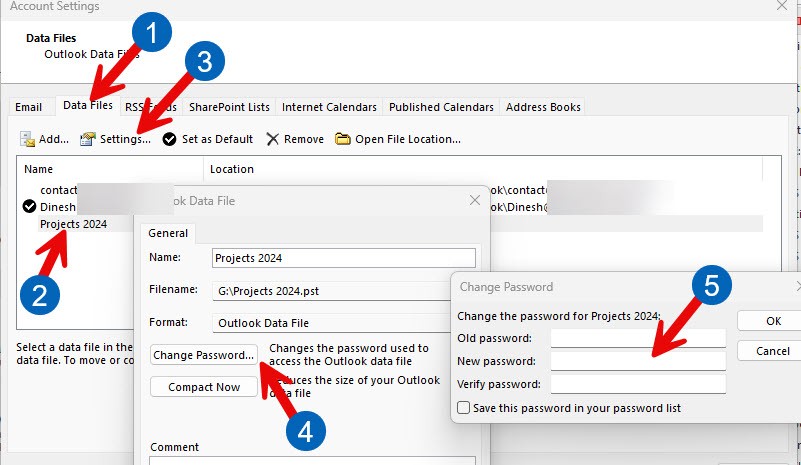
The password can be up to 15 characters and is case-sensitive. Make sure you store it in a password manager, because Microsoft cannot retrieve a forgotten PST password. An .ost file has no Change Password button, since you cannot set a password on it.
Add Folders Inside the PST
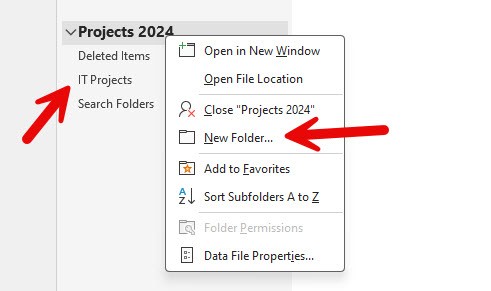
Right-click the PST name in the folder pane and choose New Folder to organise it by project or client. To rename the file as it shows in Outlook, choose Data File Properties from the same menu and change the name on the General tab.
Where to Save a PST and How Big It Can Get
Keep the PST on a local disk. The default is Documents\Outlook Files, and where the Outlook PST file is saved covers the other folders you may find.
- Not on a network share. Microsoft does not support PST files over LAN and WAN links.
- Not in OneDrive. OneDrive blocks automatic syncing of PST files, and a large PST slows the sync.
- The default maximum size is 50 GB, with a warning at 47.5 GB. At the limit Outlook says the file “has reached its maximum size”, and you have to delete items or start a second PST.
Outlook does not back up a PST for you. Close Outlook, then copy the file to a USB drive or another disk. To see how much mail you have before you decide what to move, here is how to see your Outlook mailbox size. If you end up with several archive files, you can merge Outlook archive files into one.
Let AutoArchive Create an Archive PST
Classic Outlook can create one for you. Go to File > Options > Advanced > AutoArchive Settings and tick Run AutoArchive every n days. The first run creates archive.pst in Documents\Outlook Files. By default it archives items older than 6 months (2 months for Sent Items and Deleted Items), and Delete expired items is off. AutoArchive is not available in new Outlook for Windows.
The PST Option Is Missing or Blocked
If Add does nothing or the PST choice is missing in classic Outlook, IT may have blocked it. The DisablePST policy under HKEY_CURRENT_USER\Software\Policies\Microsoft\Office\16.0\Outlook set to 1 stops users adding new PST files, while PST files already connected stay connected. A value of 2 allows only PST files meant for sharing. You cannot fix this yourself, so ask your admin.
In new Outlook, admins use the OutlookDataFile parameter of the OWA mailbox policy (Set-OwaMailboxPolicy), and Allow is the default. The classic registry keys are meant for classic Outlook, and Microsoft warns that PSTDisableGrow set to 1 can still stop users moving items to a PST or checking its contents in new Outlook. See Microsoft’s policy page for PST files.
If a PST will not open in new Outlook, go through the requirement list above. A missing classic install or a 32-bit and 64-bit mismatch is the usual reason. If you need classic back, here is how to switch back to classic Outlook.
Outlook for Mac
Outlook for Mac does not create PST files. It exports .olm files. Legacy Outlook for Mac can import a PST made on Windows: go to Tools > Import, choose Outlook for Windows archive file (.pst) and the items appear under On My Computer. Microsoft says support for legacy Outlook for Mac ends in October 2026.
How Do I Transfer a PST File to a New Computer
This works for POP accounts. Copy the PST from Documents\Outlook Files on the old PC, set up the account on the new PC, then open the PST there with File > Open & Export > Open Outlook Data File. For Microsoft 365, Exchange and Outlook.com accounts there is nothing to move. Outlook rebuilds the .ost when you add the account.
Before you move any mail into a new PST, open the Data Files tab to confirm the path Outlook saved it to, and copy that file to another drive once it holds your mail. If the Add button or the Import option is missing, ask IT whether a PST policy is set.

1 thought on “How to Create a PST File in Outlook (Classic and New Outlook)”