If a message in your inbox has a line through it, you are looking at strikethrough in Outlook email, and it has two possible causes. Either the account is IMAP and the message is marked for deletion, or someone formatted the text that way. The fix is different for each, so check which one you have first.
Quick Answer: Outlook crosses out a message in the list when an IMAP account marks it for deletion but has not purged it yet. In classic Outlook, select it and choose Home > Undelete to restore it, or View > Change View > Hide Messages Marked for Deletion to hide it. Text crossed out inside a message is formatting.
Why Does Outlook Strikethrough Emails in the Message List?
It happens with IMAP accounts (Gmail over IMAP is a common one). If Outlook is set to “mark for deletion”, a deleted message does not move anywhere. It stays in its folder with a line through it until a purge removes it from the server. Until then, the message is still on the server and you can bring it back. If you are not sure which protocol your account uses, I explained it in what protocol Outlook uses.

Strikethrough can still appear even when Outlook is set to move deleted items to a folder. Microsoft explains that the server only understands “marked for deletion”, while the move to a folder happens only inside Outlook. With Gmail over IMAP, a marked message is removed from its original folder on the server but may still show with a line through it there. You can still recover it from the Gmail Trash folder.
These details come from Microsoft’s page on restoring deleted messages in an IMAP account. That page is written for Outlook 2010, but Microsoft Q&A answers for classic Outlook for Windows give the same menus.
How to Remove Strikethrough From Emails in Classic Outlook
If you want the message back, use Undelete:
- Select the message. Press Ctrl and click to pick several, or click one and press Ctrl+A for the whole folder.
- On the Home tab, in the Delete group, select Undelete.
If you only want the crossed-out rows out of sight, go to View > Current View > Change View > Hide Messages Marked for Deletion. This is a display change only, the messages are still on the server. To list them all together instead, use Group Messages Marked for Deletion in the same menu.
To remove them for good, purge them. Select a folder of the IMAP account, go to the Folder tab and select Purge. Microsoft Q&A answers from December 2025 name that path for classic Outlook, and Microsoft says purged messages are removed from the IMAP server and cannot be restored, so use Undelete first if you are not sure. The same menu has Purge Options, where Purge items when switching folders while online makes Outlook remove marked messages as you move between folders. If mail seems to vanish from an IMAP account without you purging, check that box.
To stop it coming back, change what Outlook does when you delete:
- Go to File > Account Settings > Account Settings.
- On the E-mail tab, select the IMAP account, then select Change > More Settings.
- Open the Deleted Items tab and select Move deleted items to the following folder on the server (for Gmail, choose [Gmail]/Trash) instead of marking them for deletion.
Make sure you do this for each IMAP account that shows the problem, because the setting belongs to the account.
What About New Outlook, Outlook on the Web and Mobile?
The Undelete, Hide, Purge and Deleted Items options above are classic Outlook features. Microsoft does not document how new Outlook for Windows, Outlook on the web or the mobile apps show IMAP messages marked for deletion. Its feature comparison only lists IMAP accounts as available in new Outlook. To use the options above, you need classic Outlook, and you can switch back to classic Outlook while your account allows it. The new Outlook or classic Outlook check takes a few seconds if you are not sure which one you have.
Why Is My Email Crossed Out for Other Reasons?
If the crossed-out words are inside the message body, the sender applied strikethrough formatting. Nothing is wrong with your mailbox.
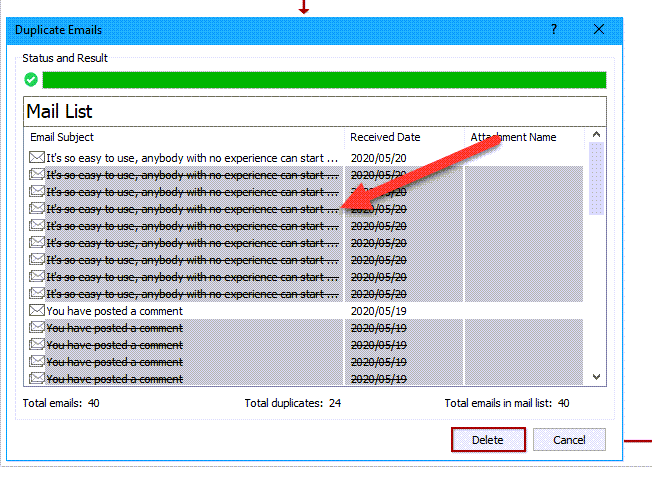
If the row is crossed out in a tool rather than in Outlook itself, check the tool. The screenshot below is a duplicate email finder: it crosses out the rows it is about to delete and has a Delete button at the bottom.
There is also a report from classic Outlook users in June 2023, about 40 of them on one Microsoft Q&A thread, whose incoming messages in conversations showed as struck through. No answer on that thread is marked as the solution. The moderator asked people to try these checks:
- Clear Open replies and forwards in new windows under File > Options > Mail > Replies and forwards.
- Remove the Ignore status from the conversation (Ignore in the Delete group of the ribbon toggles it).
- Open the same mailbox in Outlook on the web to see whether the problem follows the account.
- Test with a new Outlook profile.
How to Add Strikethrough in an Outlook Email
Where the strikethrough in Outlook is depends on the client. Select the text while you write the message or reply, then:
- Classic Outlook: go to the Format Text tab and select Strikethrough. If you do not see the button, select the three dots at the right end of the ribbon.
- New Outlook for Windows: go to the Format text tab and select Strikethrough.
- Outlook for Mac: select Strikethrough on the ribbon.
- Outlook on the web: select Show formatting options next to Send. Microsoft’s web pages list font, bold, underline, italics, highlight, bullets and numbering there and do not mention Strikethrough, although a Microsoft Community specialist says it is in the Format text options. If you cannot find it, write the message in new Outlook or classic Outlook.
- Outlook for iOS and Android: Microsoft’s list of mobile formatting covers bold, italic, underline, links, three fonts and lists. Strikethrough is not on it, so do this one from a computer.
The buttons stay greyed out if the message is in plain text, because plain text has no formatting. In classic Outlook, choose Format Text > HTML in the message window. To make HTML the default, go to File > Options > Mail and set Compose messages in this format to HTML. In new Outlook the default is under Settings > Mail > Compose and reply > Message format. Microsoft has more on this in changing the message format, and the strikethrough font page covers the buttons.
Is There a Keyboard Shortcut for Strikethrough in Outlook?
Not one that Microsoft lists. The keyboard shortcuts for Outlook page has no strikethrough entry for classic Outlook, new Outlook or Outlook on the web, and a Microsoft support reply from June 2025 says new Outlook has no dedicated shortcut for it. Some websites list one anyway, so test before you trust it. Use the ribbon button.
How to Get Rid of Strikethrough on Text You Typed
Select the crossed-out text and select Strikethrough again. It is a toggle, so the second click turns it off. In classic Outlook you can also press Ctrl+Spacebar (or Ctrl+Shift+Z) to clear the formatting. That clears every character format in the selection, such as bold and colour, so use it only when you want that.
One last tip for IMAP accounts: before you purge, open Group Messages Marked for Deletion once and look through the list. Those are the messages that will go from the server.